
Connecting Telegram, Slack, Discord & Webhooks
Route real-time store alerts to your ops team’s favorite chat workspace with interactive buttons or custom JSON webhooks.
Overview: Multi-Channel Alert Routing
Tada Alerts delivers real-time operational notifications to four supported channel types: Telegram, Slack, Discord, and Custom Webhook (HTTPS POST). All plans (Free, Pro, and Scale) support unlimited simultaneous channels, allowing you to route alerts to Telegram, Slack, Discord, and Custom Webhooks at the same time without extra channel paywalls.
Navigate to Apps → TadaAlerts → Channels to view your connected endpoints or add a new channel.
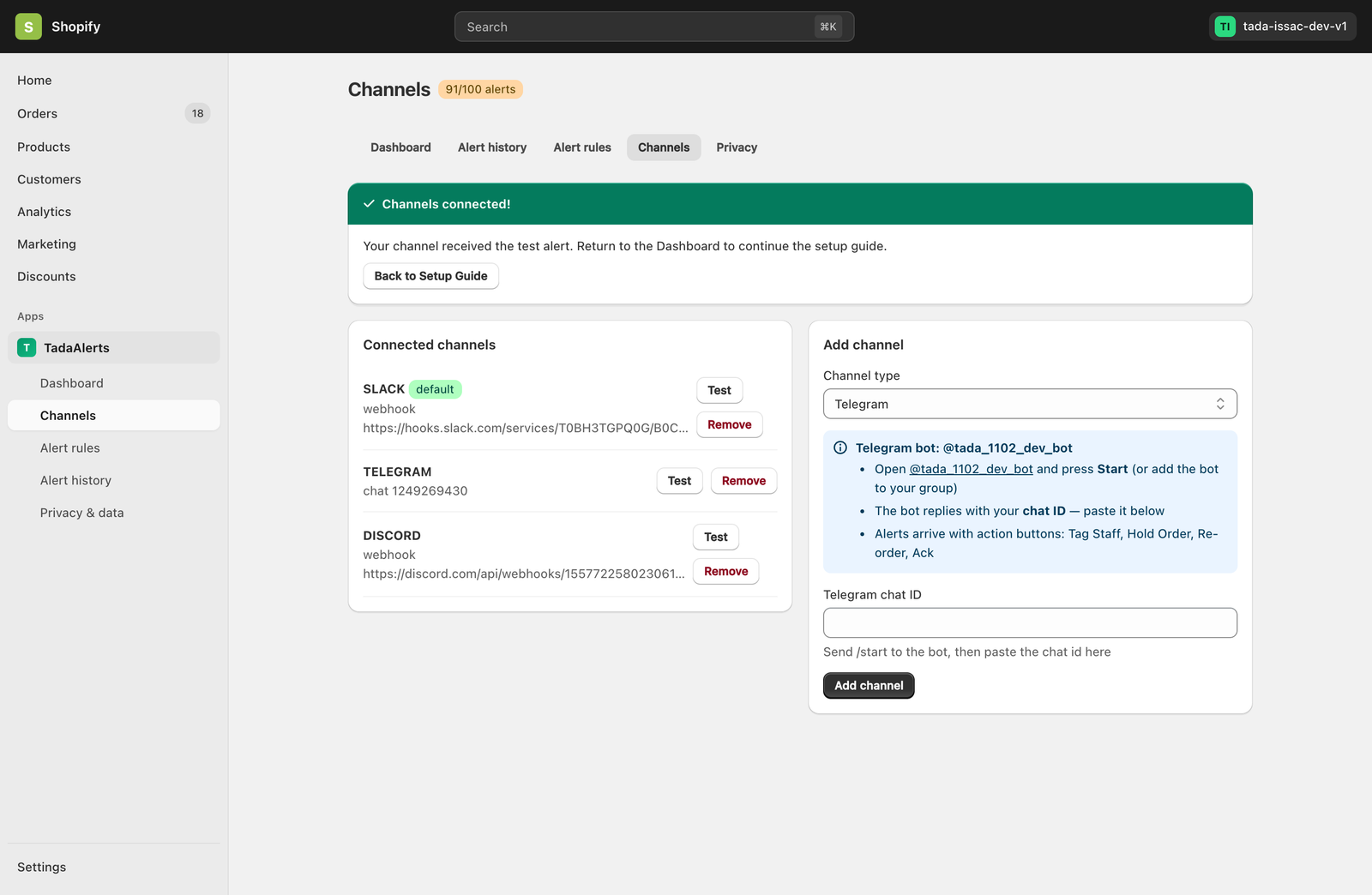
Option A: Connecting Telegram (With Interactive Action Buttons)
Telegram is the fastest way to receive rich alerts on mobile and desktop with full support for one-tap interactive buttons (Tag Staff, Hold Order, Re-order, and Ack).
- In the Add channel card, select Telegram under Channel type.
- Click the link to open the official Tada Alerts bot in Telegram and press Start (or invite the bot to your ops group chat).
- Send
/start— the bot immediately replies with your numeric Telegram chat ID (for group chats, this starts with a minus sign, e.g.,-100198234...). - Paste the Chat ID into the Telegram chat ID field and click Add channel.
- Click Test next to your newly added Telegram channel to send a live verification ping.
Option B: Connecting Slack (Incoming Webhook or Bot Channel)
To route alerts to a dedicated Slack channel (such as #shopify-ops or #fraud-alerts), select Slack from the Channel type dropdown.
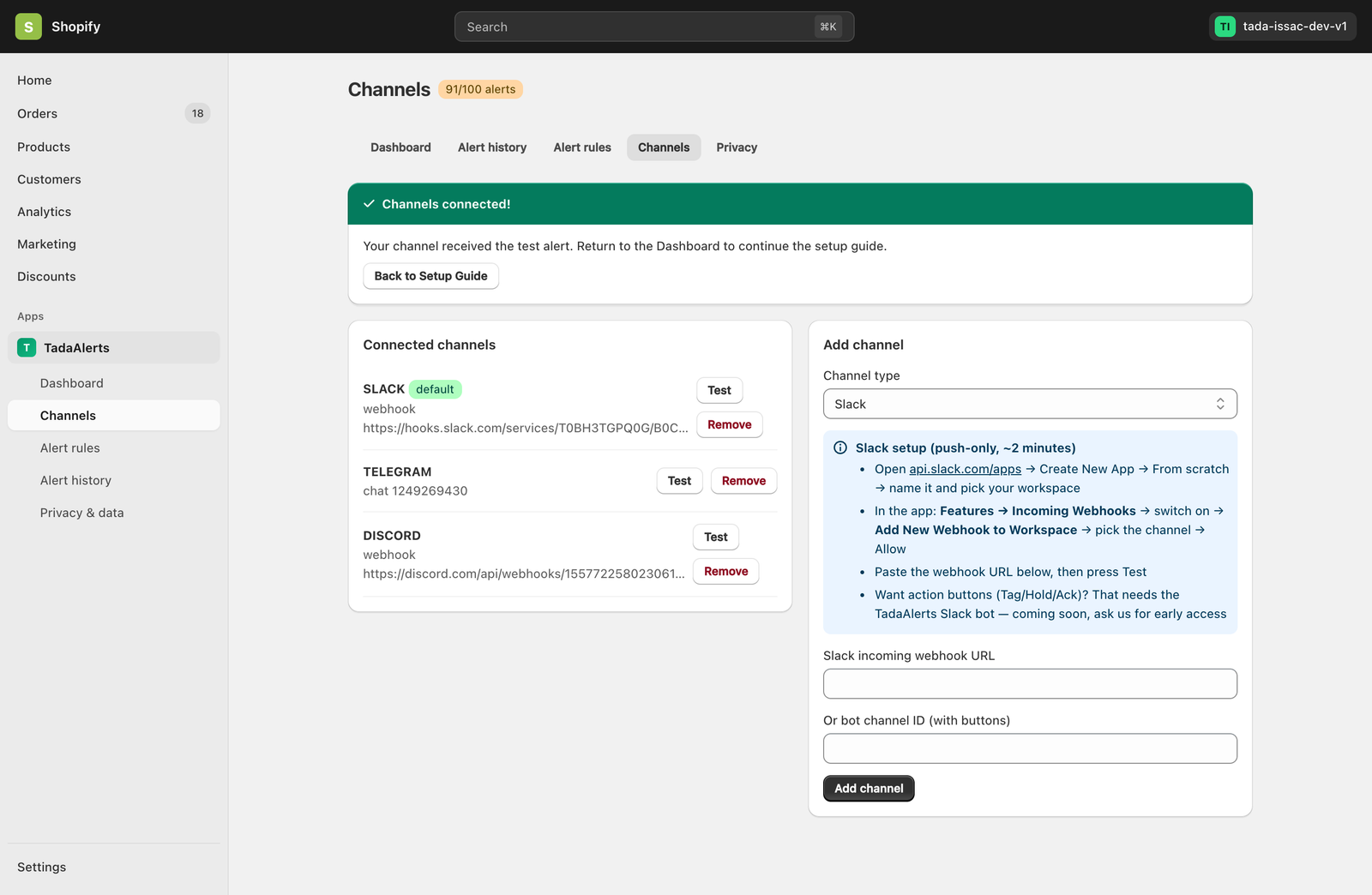
- Open api.slack.com/apps → click Create New App → From scratch, name it Tada Alerts, and select your Slack workspace.
- In the left sidebar, choose Incoming Webhooks, toggle Activate Incoming Webhooks to
On, and click Add New Webhook to Workspace. - Pick your target channel and click Allow.
- Copy the generated
https://hooks.slack.com/services/...URL, paste it into Slack incoming webhook URL, and click Add channel.
Option C: Connecting Discord
Select Discord in the Channel type dropdown to send rich embedded cards directly into your Discord server.
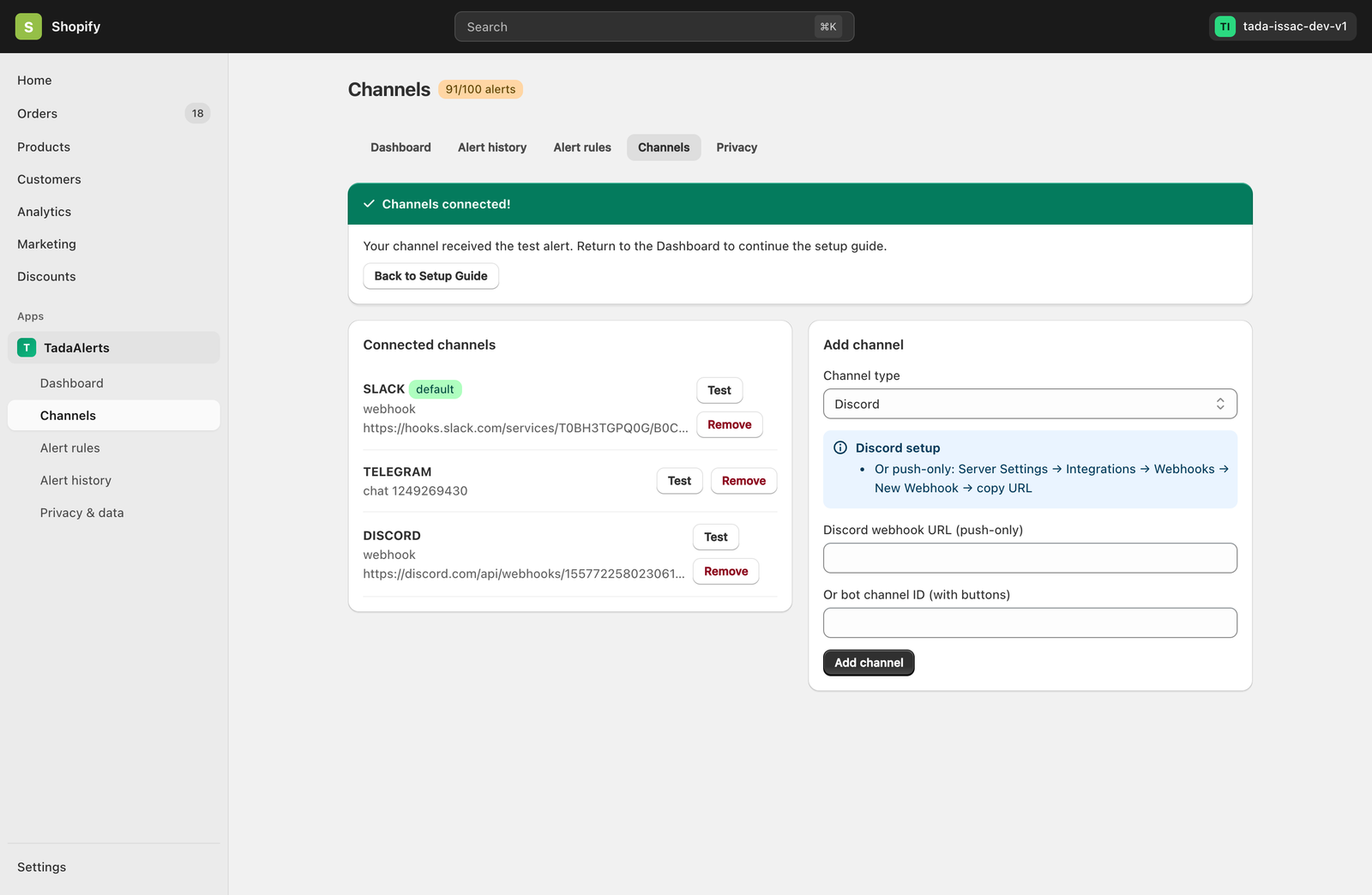
- In your Discord server, open Server Settings → Integrations → Webhooks → New Webhook.
- Select the channel where alerts should appear and click Copy Webhook URL.
- Paste the URL into Discord webhook URL (push-only) (or enter your Discord channel ID if using the Tada Alerts Discord bot for interactive buttons) and click Add channel.
Option D: Custom Webhook (JSON Payload)
Select Custom webhook to send HMAC-signed JSON POST requests to PagerDuty, Zapier, Make, n8n, or your internal ERP/WMS microservice. Every webhook delivery is logged with HTTP status codes and latency in the Dashboard Delivery Health panel.